
1. Introduction
At offline fighting game tournaments like EVO, the PlayStation 5 (PS5) is the standard platform. However, most custom or leverless controllers equipped with GP2040-CE firmware will either not be recognized by the PS5 or will only work for “8 minutes” before disconnecting. This is due to the PS5’s security authentication requirements.
This article explains how to properly connect your GP2040-CE based controller to a PS5 for stable gameplay.
2. Method 1: Using a Converter (e.g., Wingman FGC)
This is the most common and reliable method that works with almost any controller.
How it works
A converter, such as Brook’s “Wingman FGC,” translates the controller’s signals into a format recognized by the PS5 in real-time.
Preparation (Devices & Firmware)
- Wingman FGC: Ensure it is updated to the latest firmware from the Brook Official Website.
- Controller: Check for the latest firmware on the GP2040-CE Official Website. If you have a pre-built controller from a manufacturer, check their specific support page.
Setup & Operation
- Input Mode: Connect in
XInputmode (PC mode). - How to connect: Hold the B button on your controller while plugging in the USB cable to connect to the PS5 through the converter.
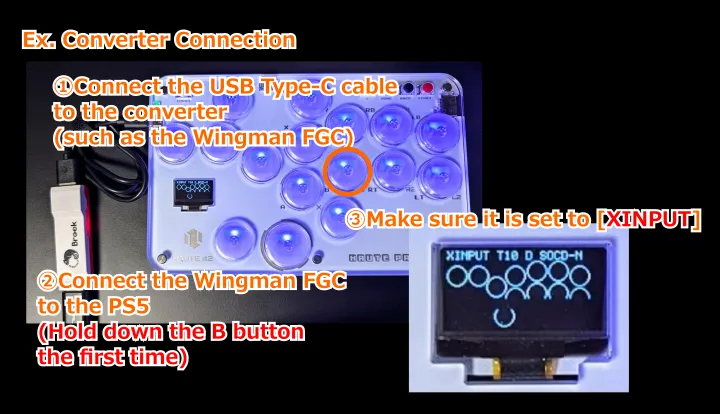
Precautions & Risks
- Watch your input mode: If you set the controller to “PS4 mode” or “PS5 mode” while using a converter, it may not work correctly or may introduce unnecessary lag. Always use XInput mode when using a converter.
3. Method 2: Using an Authentication Device (Passthrough)
This method is available if your controller has a “USB-A Host Port (EXT Port).”
How it works
By plugging a PS4-compatible authentication device into the controller’s host port, the GP2040-CE firmware “borrows” the authentication info from that device to maintain communication with the PS5.
Preparation (Devices & Firmware)
- Auth Device: Prepare one of the following:
- Haute42 Booter5 / Mayflash MagicBoots v1.1 / Guilekeys P5Boots, etc.
- Brook Wingman FGC (Original version)
- Controller: Check for the latest firmware on the GP2040-CE Official Website.
Setup & Operation
- Input Mode: Connect in
PS5mode (or PS4 mode). - How to connect: Hold the Y button on your controller while plugging in the USB cable.
- Verification: Connect the auth device to the passthrough port. If the OLED display shows
[PS5:AS], the connection is successful.
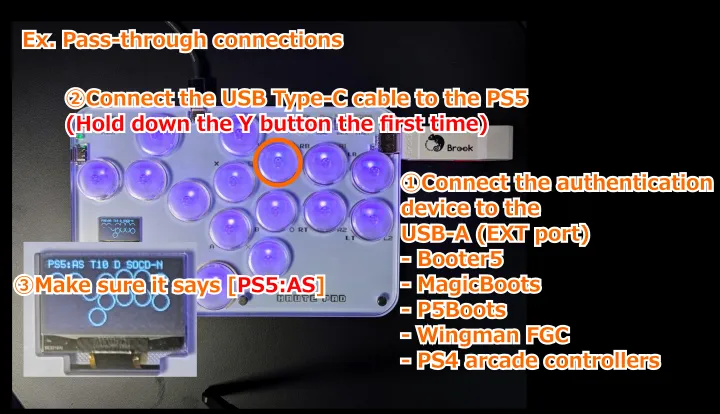
Precautions & Risks
- Wingman FGC Version: Note that the Wingman FGC 2 and later cannot be used as an authentication device for passthrough.
4. Method 3: Connecting with the 8-Minute Limit (NOT Recommended)
This method uses software compatibility modes without any additional hardware.
How it works
The controller is recognized as a PS4 controller, but since it lacks proper authentication, the PS5’s security will cut the connection after approximately 8 minutes.
Preparation (Devices & Firmware)
- Controller: Ensure you have the latest GP2040-CE firmware.
Setup & Operation
- Input Mode: Connect in
PS5mode. - How to connect: Hold the Y button while plugging in the USB cable.
Precautions & Risks
- Severe Disconnection Risk: The controller will stop working 8 minutes after connection. A disconnection during a match is usually treated as a loss and causes significant disruption to your opponent and tournament organizers. Avoid using this method at offline tournaments at all costs.
5. Summary
If you are participating in an offline tournament, we strongly recommend one of the following setups:
Converter Setup
- Connect a Wingman FGC between the PS5 and your controller, and use XInput mode (Hold B while connecting).
Passthrough Setup
- Connect a Booter5 / MagicBoots v1.1 / P5Boots to the controller’s EXT port, and use PS5 mode (Hold Y while connecting).
Note: These instructions assume default button mappings. If you have customized your button layout, please use the corresponding buttons for your configuration.