1. Introduction
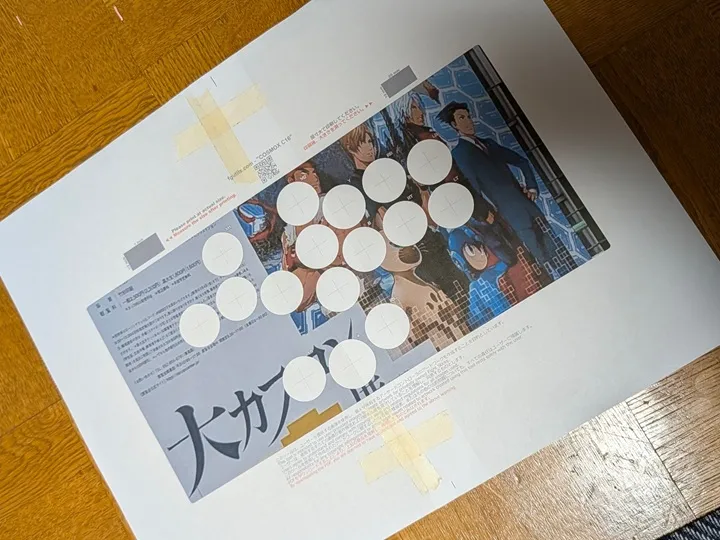
This tool is a web application that allows you to easily create top-plate artwork for your arcade controller. Anyone can create artwork with intuitive operations without installing special software on their PC.
This application performs all processing on your browser. Your created artwork will not be uploaded to any server.
2. Basic Operation
This section explains the basic flow from creating your artwork to exporting it as a PDF.
Step 1: Select a Template
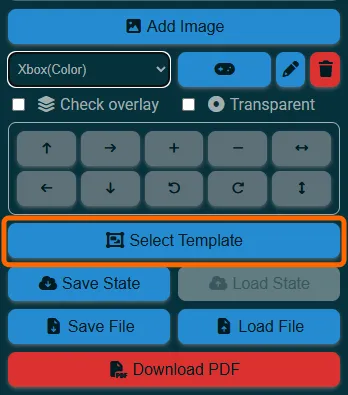
Click the [ Select Template] button on the right to display a list of available arcade controller templates.
You can also filter the templates by manufacturer or model name.
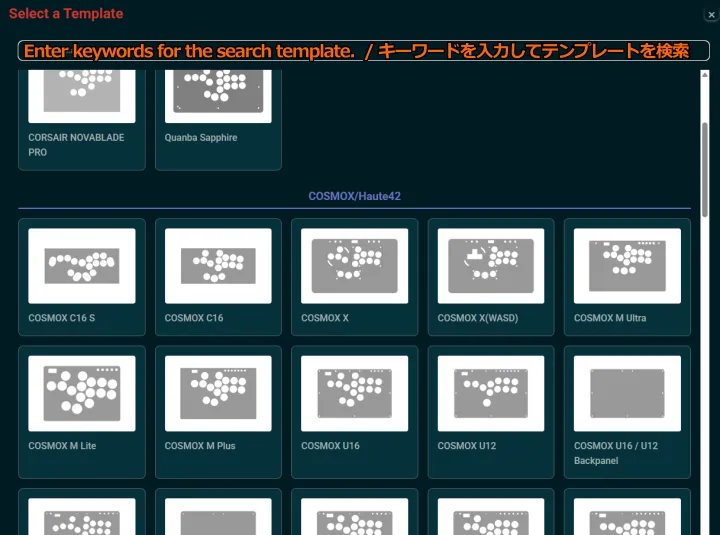
Once you select a template, the canvas will be displayed.
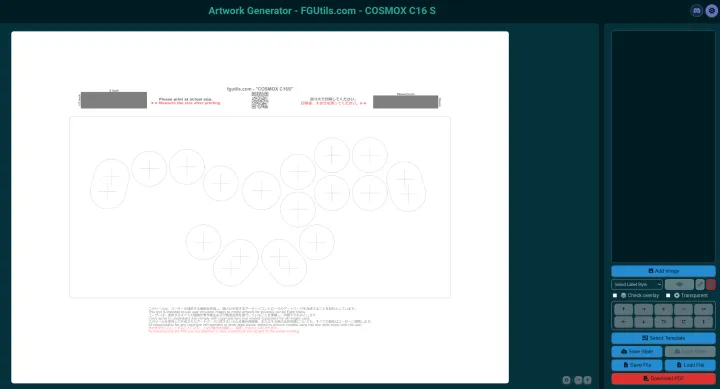
Step 2: Add an Image
Next, click the [ Add Image] button and select the image (JPG, PNG, etc.) you want to use for your artwork.
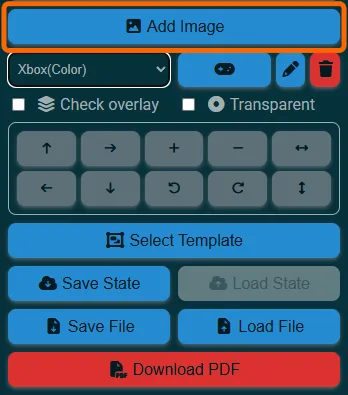
You can adjust the position of the added image by dragging and dropping it.
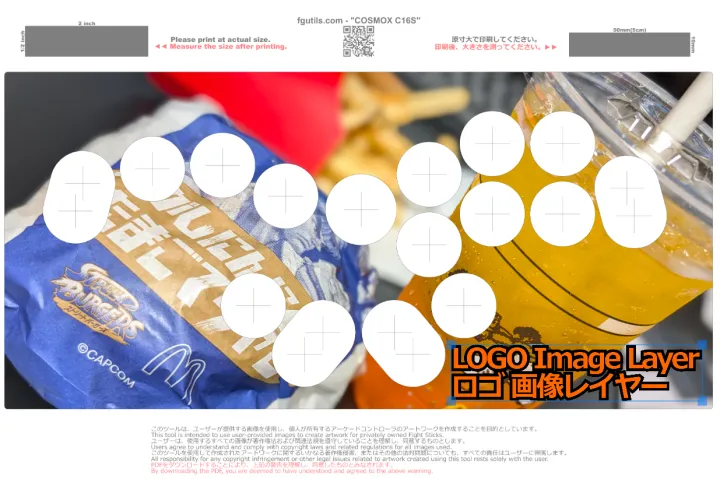
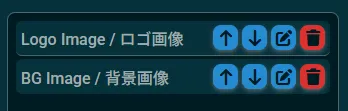
Images are treated as layers, and you can stack multiple images.
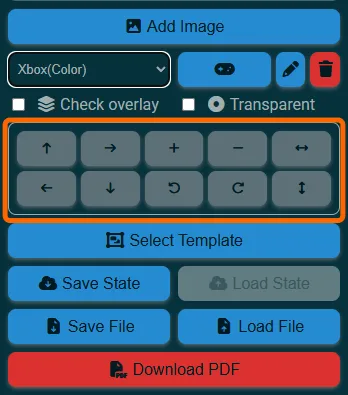
You can perform detailed operations such as scaling and rotation using the “Layer Position Control Panel”.
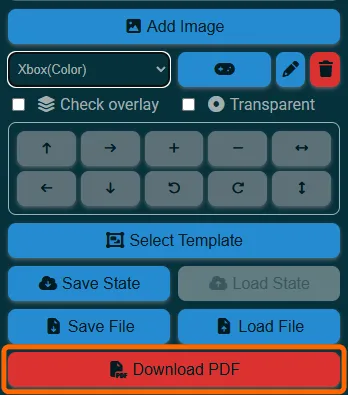
Step 3: Download the PDF
Once your design is complete, click the [ Download PDF] button.
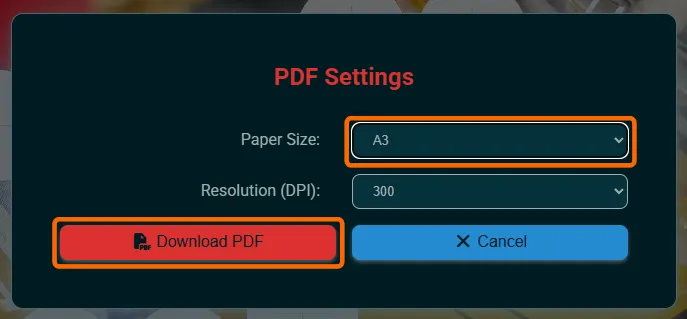
Select the desired paper size (e.g., A3, A4) and resolution (DPI), then click the [ Download PDF] button. The recommended DPI is 300.
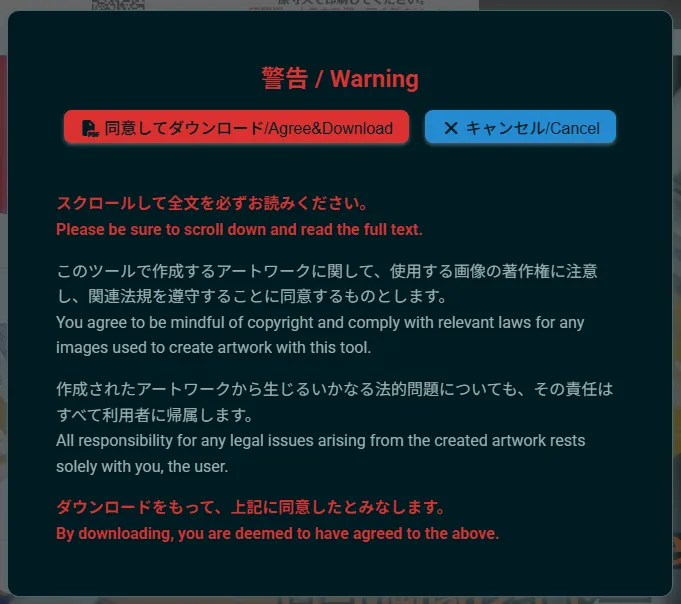
Review the content and click the [ Agree & Download] button if you agree. If you do not agree, click the [ Cancel] button.
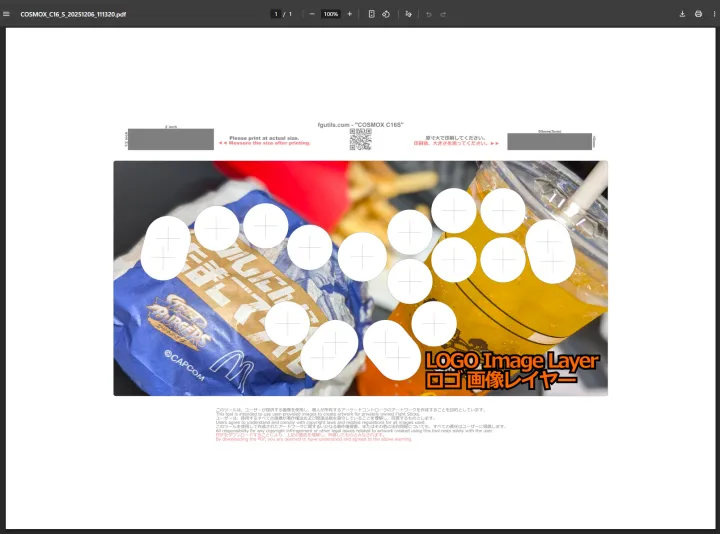
A PDF file for printing will be generated and downloaded.
Step 4: Print the PDF
Please print the PDF using your printer or a printing service.
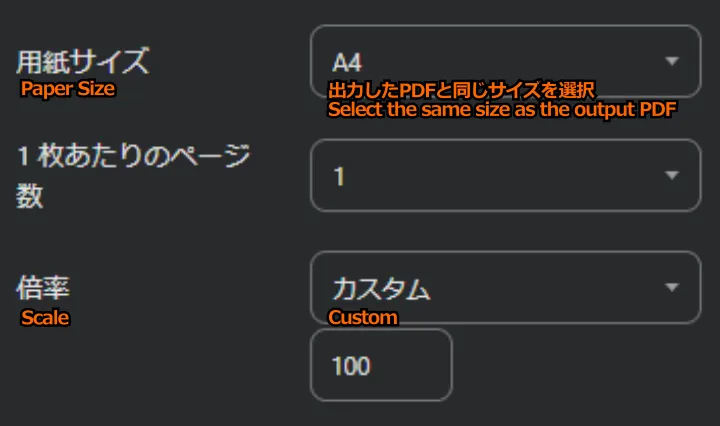
Note: Be sure to print at 100% scale. “Borderless printing” or “Fit to page” will not print correctly.

When printing on Windows, please use the following settings.
3. Feature Description
3.1. Layer Position Control Panel
- : Moves the layer up.
- : Moves the layer to the right.
- : Moves the layer to the left.
- : Moves the layer down.
- : Zooms in on the layer.
- : Zooms out on the layer.
- : Rotates the layer to the left.
- : Rotates the layer to the right.
- : Flips the layer horizontally.
- : Flips the layer vertically.
3.2. Layer List Panel
- : Moves the layer’s order up one level.
- : Moves the layer’s order down one level.
- : Displays the layer edit panel.
- : Deletes the layer.
3.3. Layer Edit Screen
This screen appears when you double-click a layer or click the edit button [] in the layer list panel.
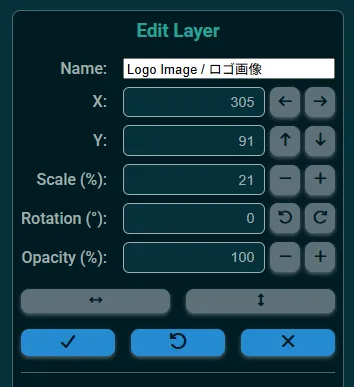
- X: Specifies the layer’s X-coordinate (horizontal axis).
- Y: Specifies the layer’s Y-coordinate (vertical axis).
- Scale(%): Specifies the layer’s scaling factor (0% - 100%).
- Rotation(°): Specifies the layer’s angle (0 - 360).
- Opacity(%): Specifies the layer’s opacity (0%: transparent - 100%: opaque).
- : Applies the changes to the canvas.
- : Reverts the changes.
- : Cancels the changes.
3.4. Button Labels
You can add button name labels to your artwork.
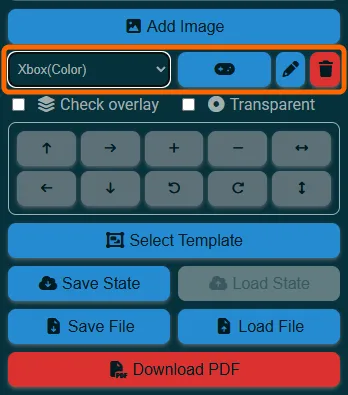
- : Adds the selected button name labels.
- : Bulk edits all button labels.
- : Deletes the selected button name labels.
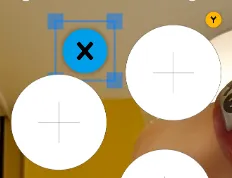
Added button labels can be resized, positioned, and have their opacity changed just like regular layers.
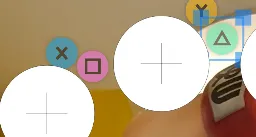
It’s also possible to add multiple types of button labels, such as for Xbox and PlayStation.
3.5. Bulk Edit Button Labels
This screen appears when you click the [] button.
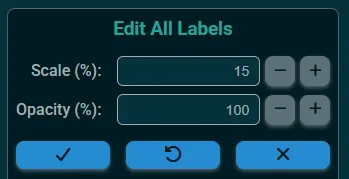
- Scale(%): Specifies the scaling factor for all button labels (0% - 100%).
- Opacity(%): Specifies the opacity for all button labels (0%: transparent - 100%: opaque).
- : Applies the changes to the canvas.
- : Reverts the changes.
- : Cancels the changes.
3.6. Save/Restore State
Saves the artwork to your browser’s temporary storage. Only one generation can be saved. Use this as a checkpoint when you need to interrupt your work for a short time.
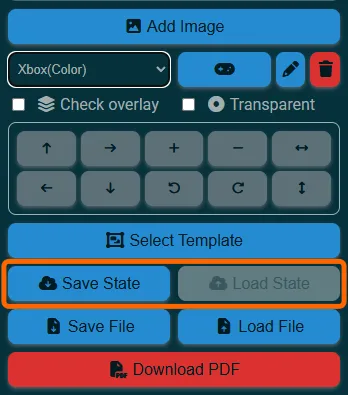
- Save State: Saves the artwork to the browser.
- Load State: Restores the artwork from the browser.
3.7. Save to/Load from File
Saves and loads the artwork as a file.
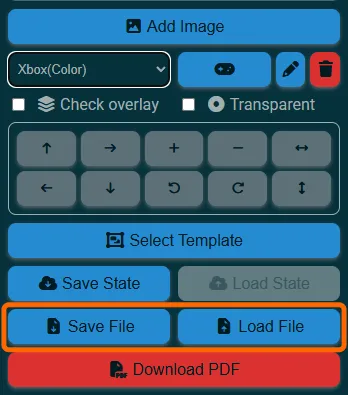
- Save File: Saves the artwork to a file.
- Load File: Restores the artwork from a file.
3.8. Split Printing for PDF Export
A warning will be displayed if the paper size is smaller than the selected arcade controller template.
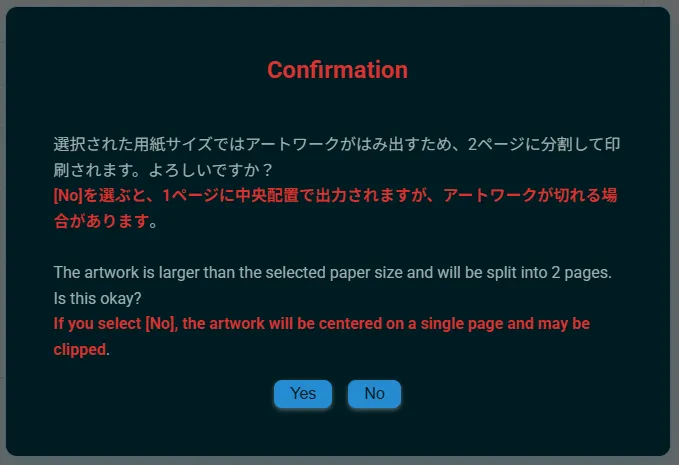
- [Yes]: A PDF split into multiple pages will be output.
- [No]: The PDF will be forcibly output on a single page. The template may extend beyond the printable area.
The split PDF has a 20mm overlap margin.
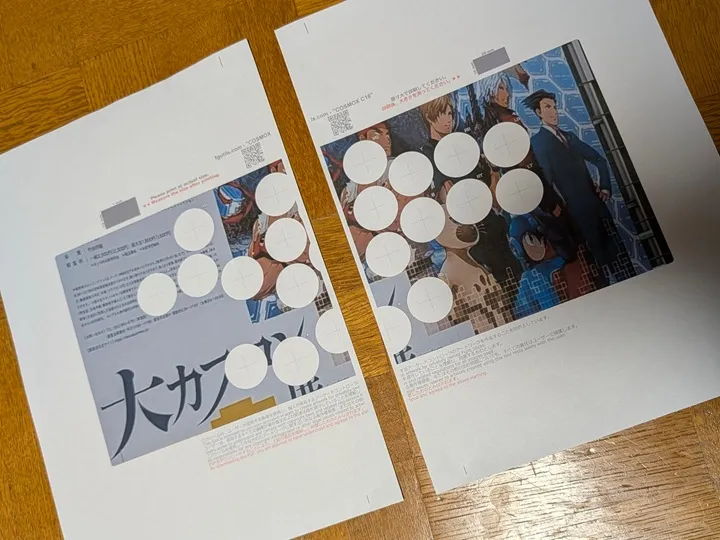
By checking the alignment lines displayed at the top and bottom and pasting the sheets together, you can create large artwork even with small paper.